Changelog

Follow the latest updates and improvements to Visualbook

25 releases in the last 12 months

6.0.0

The biggest update since Visualbook launched. A connection to AI assistants through secure sign-in, an improved editor, a choice of 6 languages (CS, SK, PL, EN, DE, ES), a new interactive hotspots module, alt text management and many other improvements. And everything is now a bit faster thanks to optimisation and a faster server.

AI connector (MCP)

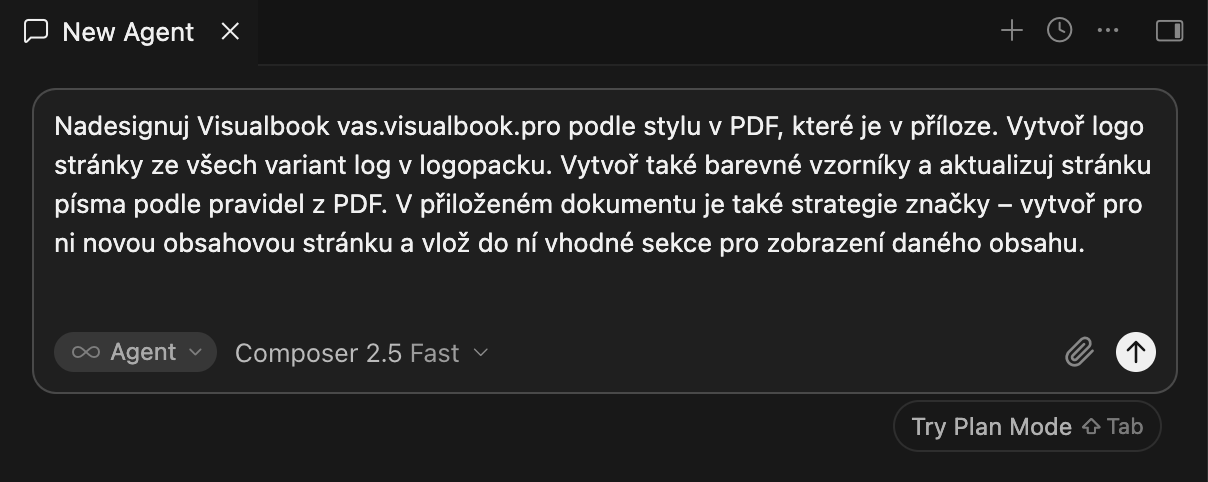
Cursor with the Visualbook MCP connector connected.

You can now connect Visualbook to an AI assistant — ChatGPT, Claude, Cursor, VS Code, Codex — and work on your manual through an ordinary conversation. Your AI agent works directly with your content, under the same rules and the same permissions you have in the admin. This will genuinely speed up your work.

It helps you build

  • It creates pages and sections from your instructions — "add a content page called Iconography with an intro text and an icon section using the icons you will find in the local folder".
  • It writes and fills in texts, sets brand colours, typography and the cards on the home page.
  • It uploads files (logos, fonts, images) and links them into sections.
  • It can look at another public Visualbook and propose a similar manual structure as a skeleton for you to fill in.

It helps you edit

  • Bulk text edits across pages from a single instruction.
  • Translations – it finds untranslated texts, translates them and shows you a preview first, saving only afterwards.
  • Image alt texts, renaming files (links keep working and the new name carries over to the export ZIP).
  • Ordering and hiding cards and sections, slugs, moving and duplicating pages.
  • Quality check – it goes through the same "Tips for improvement" list you see in the panel and offers fixes.

How it connects

  • By signing in – you paste your manual's address into the assistant and sign in with your Visualbook account. Simple and secure.
  • The assistant has exactly your permissions.
  • Your account → MCP connectors – you see what is connected, when it was last used, and you can revoke access in one click. Changing your password disconnects everything.
  • It never touches sensitive fields (passwords, API keys) and respects the same constraints as the panel (allowed values, ranges, maximum lengths). Deleting pages and files remains up to you in the admin. The agent cannot delete anything.

Public read-only mode – you can optionally enable an address that anyone from your team or a client can paste into their own AI. The assistant then gets a much better overview of your Visualbook than it would by going through it page by page.

Editing directly on the site

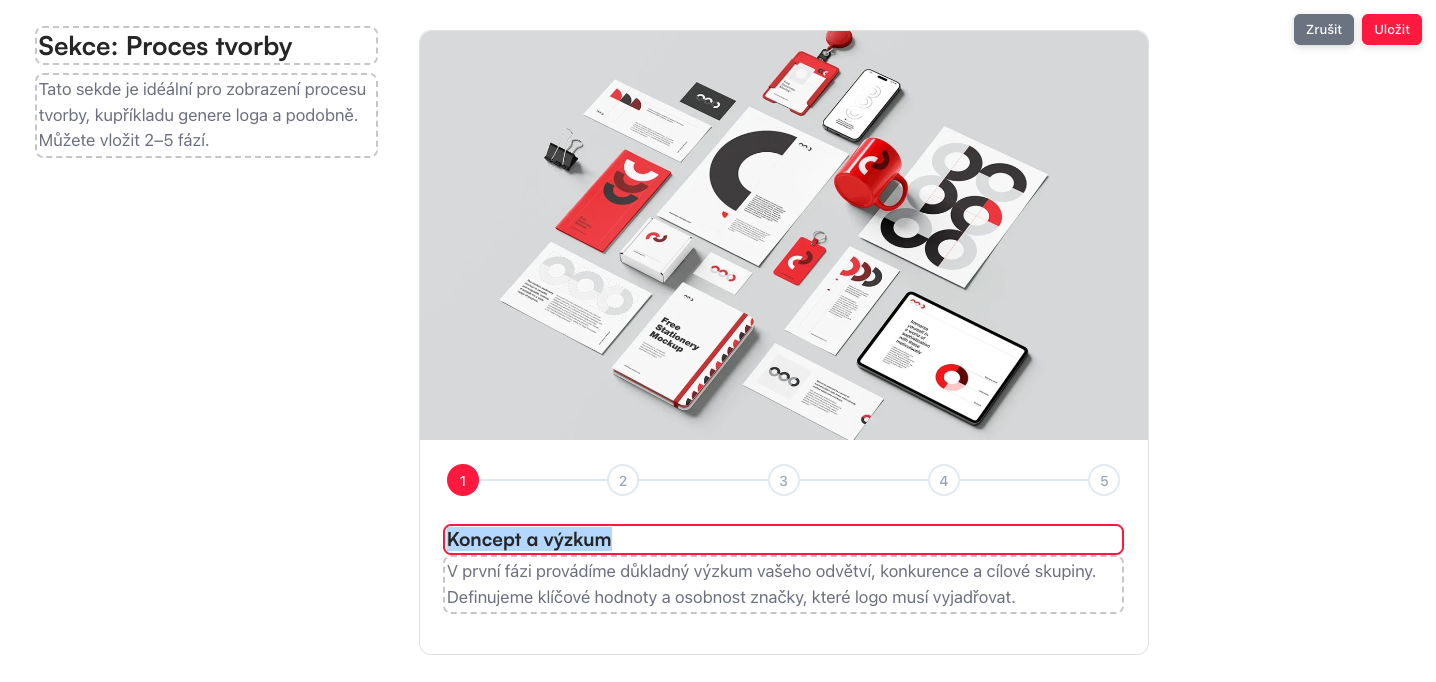
You no longer have to go into the panel for every change — click the pencil and edit the content right where you see it.

  • Texts – inline editing of headings, captions and paragraphs including the full formatting toolbar (the same one as in the admin).
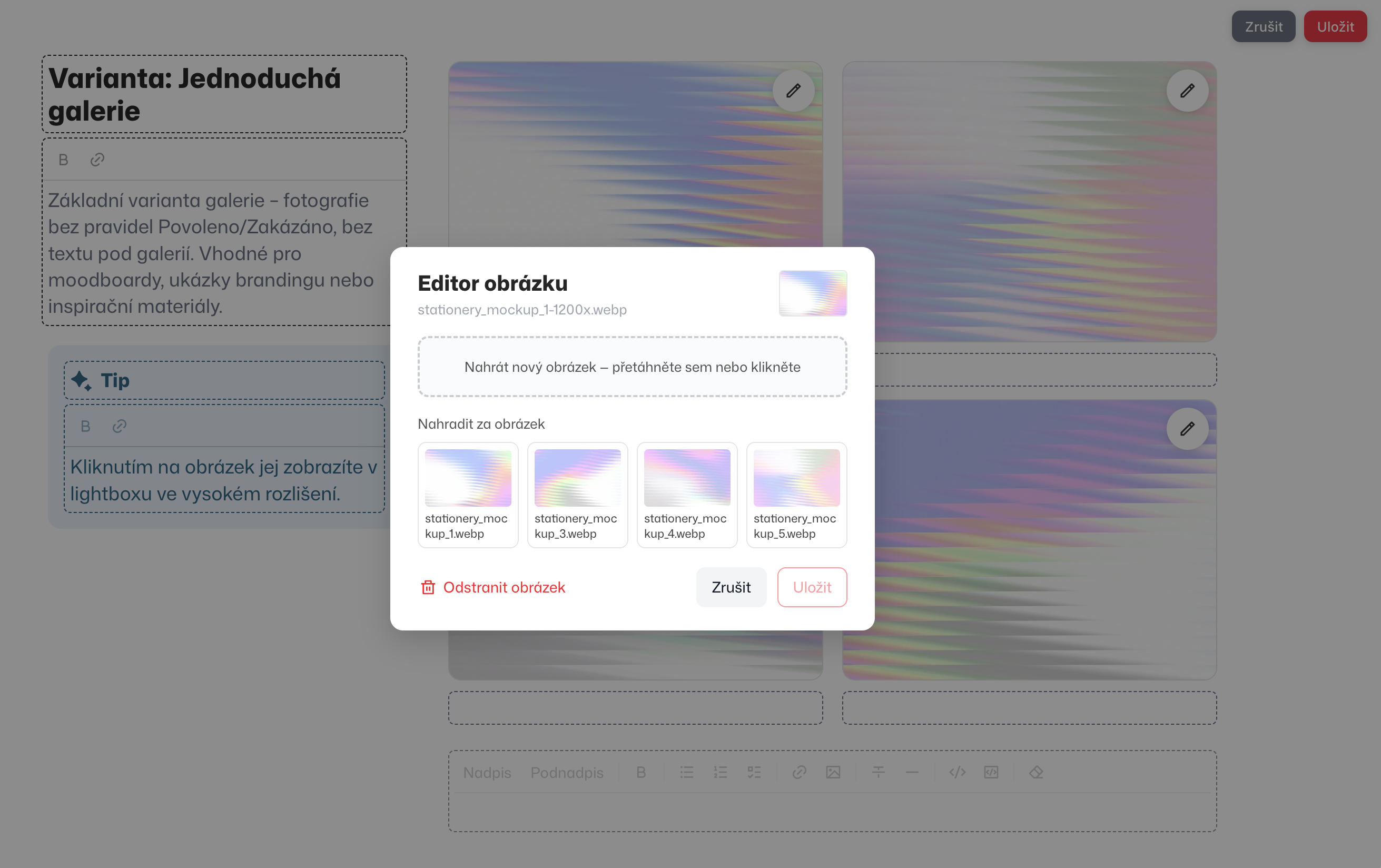
  • Images – replace, upload a new file or pick from the section library. Previews work for fonts and TIFF files too.
  • Buttons – change the label, the type and the target (link, page, file, e-mail).
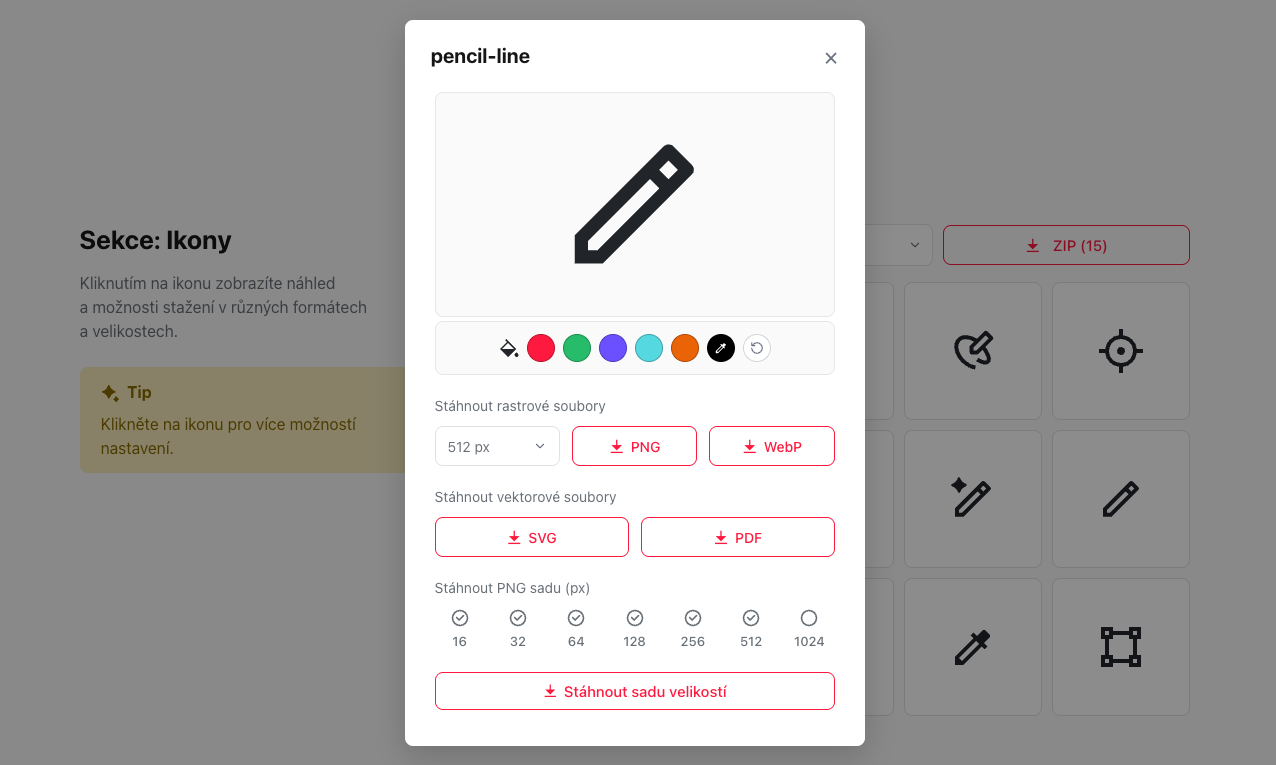
  • Icons – add, remove, reorder and upload your own SVG.
  • Galleries – reorder photos with the mouse (drag & drop), edit gallery buttons.
  • Cards and sections – reorder cards on overview pages, edit card headings, the info box type and table cells.
  • Hotspots – move points on an image and edit their texts.
  • Protection against losing changes – if you leave with unsaved edits, the site speaks up. We've also added keyboard shortcuts.
  • Editor dialogs are shown in the language of the site.

Six languages

  • The admin is fully translated into Czech, English, German, Polish, Spanish and Slovak — including help texts, error messages, edit history and statistics.
  • The site is no longer tied to the Czech + English combination. You can choose any pair of languages.
  • Automatic content translation has a new industry glossary for all six languages, so branding terminology stays consistent.
  • The page slug is regenerated correctly after the title is translated — an English page called Logos no longer stays at /loga just because you forgot about it.
  • The translation check can also report untranslated slugs.

A new text editor across the whole project

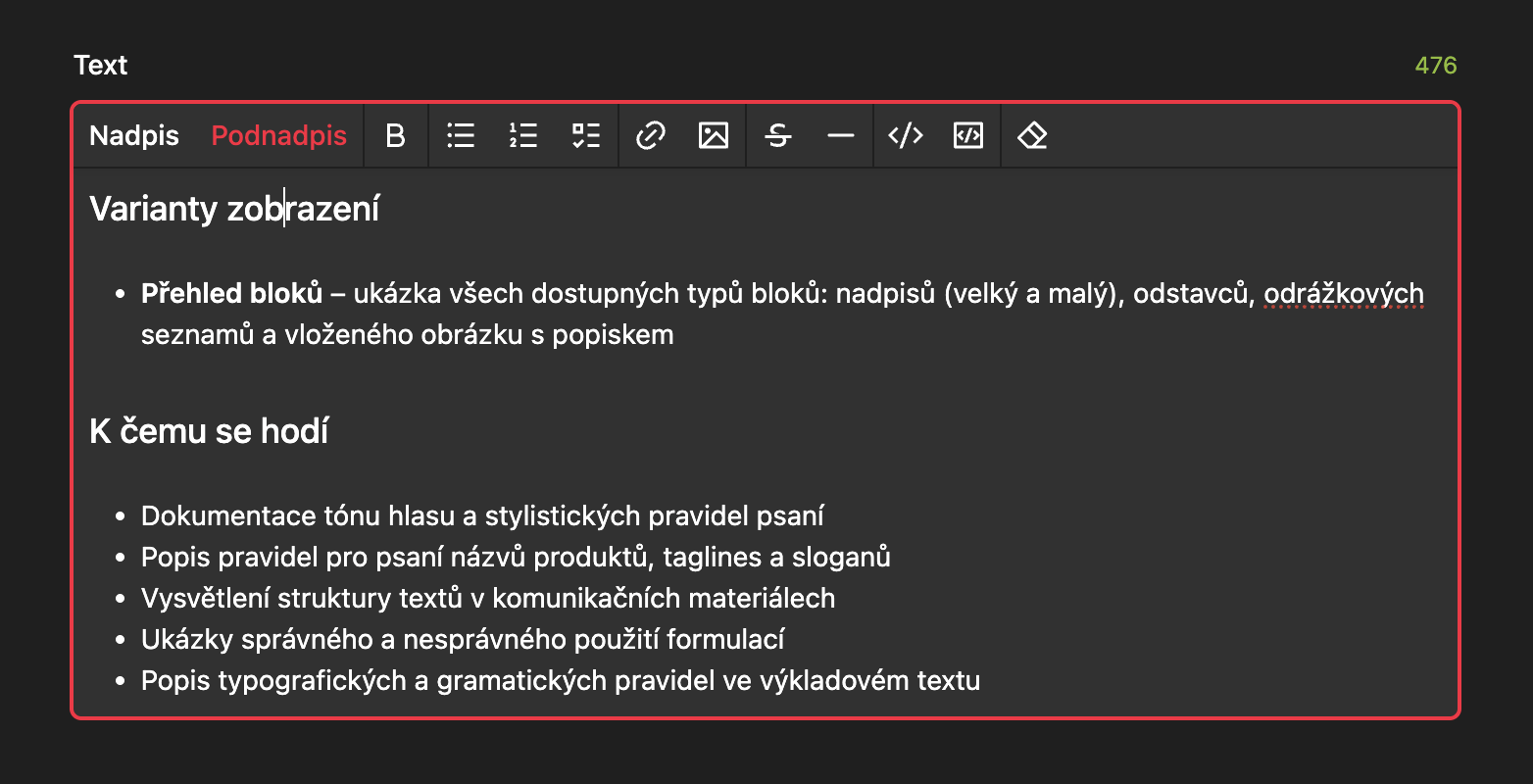
We have converted the text fields to a WYSIWYG editor — you see immediately how the text will look.

  • Full formatting toolbar: headings, lists, checklists, tables, links, images, quotes, code.
  • Images and links render normally in the editor, not as markup.
  • Existing content was converted automatically — you don't have to rewrite anything by hand.
  • Czech typography: single-letter words (a, v, z, k…) no longer get stranded at the end of a line, and we also watch out for prepositions with a hyphen ("e-mail").

New and improved modules

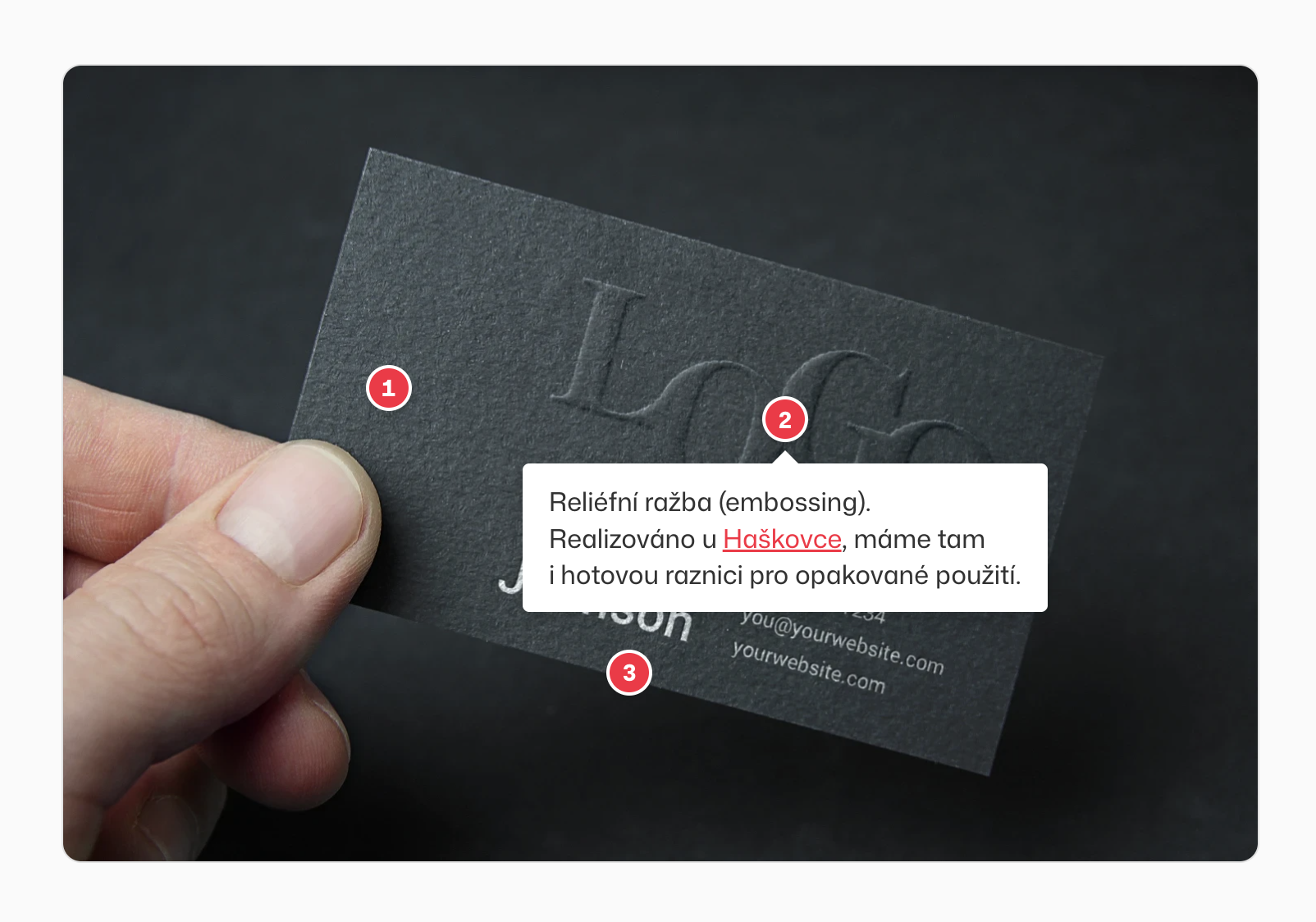
  • Interactive hotspots – points on an image with a tooltip. New: numbered points, a "Texts below the image" mode, automatic opening of the first tooltip, adjustable corner radius and appearance.
  • Icons – a new variant with groups (grouped layout).
  • Code sample – collapsible additional content below the sample.
  • Typography – support for Lottie animations in the typeface preview, editing of accordion buttons.
  • Cards – text cards unified into a single field with reordering on the site.

Alt texts

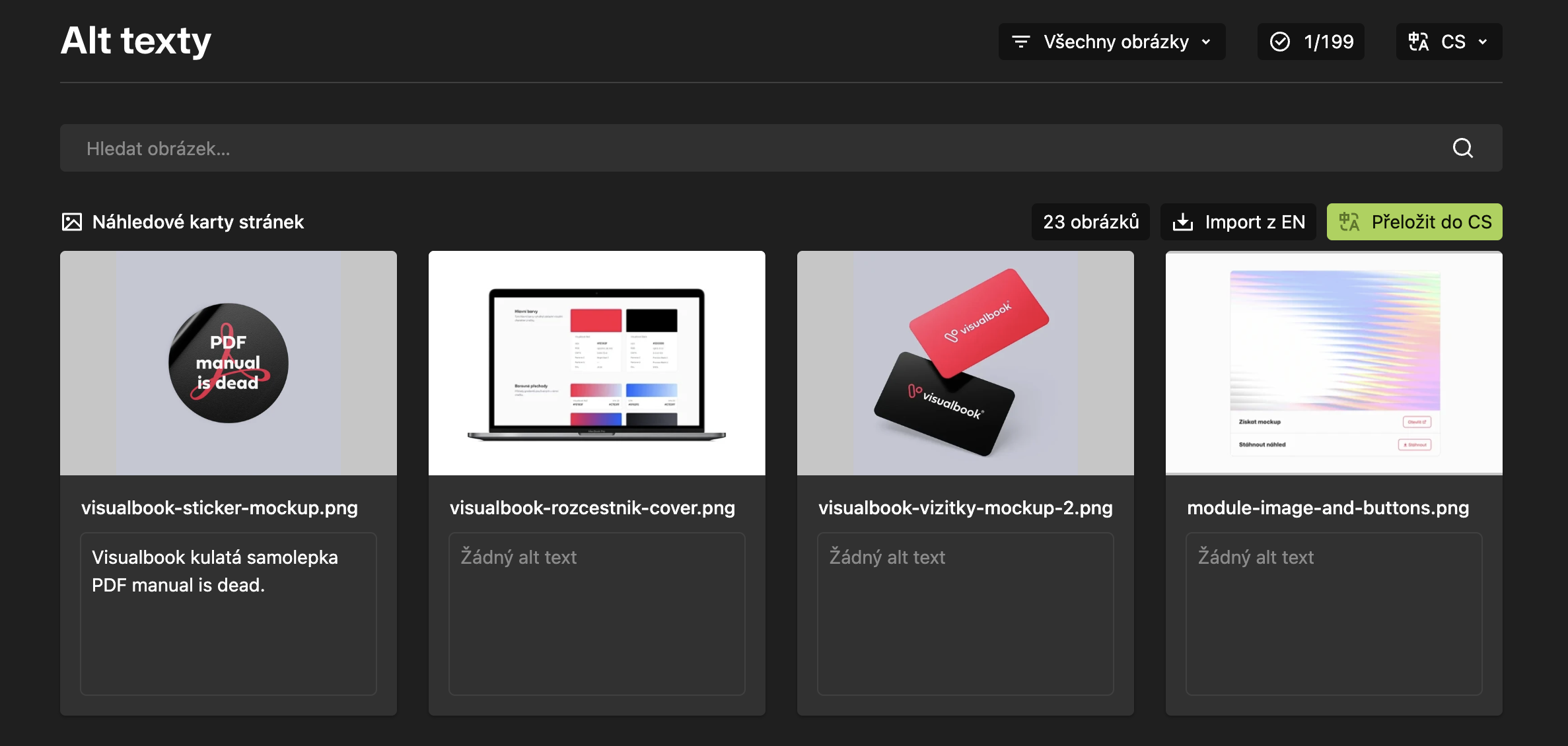
  • A new "Alt texts" menu item – bulk management of image alternative texts in one place, without clicking through individual pages.
  • The alt field is available for all file types, and the file overview shows you where an alt text is missing.
  • Galleries render alt texts correctly (SEO + accessibility).

Logo and brand

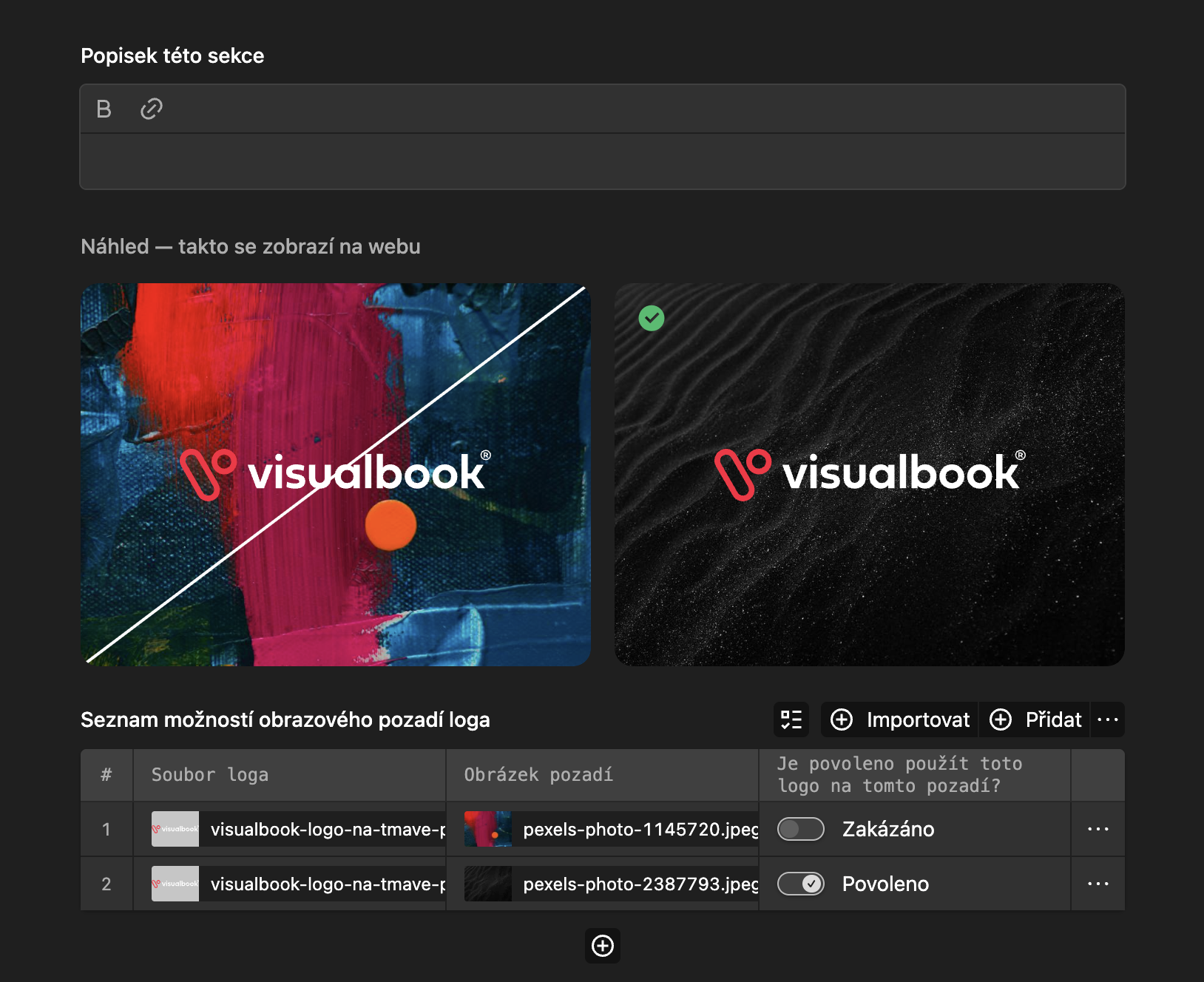
  • Logo usage guidelines have their own tab and a live preview gallery — you see what a rule looks like, including the variant on a colour background.
  • Clear space: a new dialog with a visualisation and a slider for a custom value.
  • Links to logo groups are permanent (they don't break when something is renamed).
  • Multibrand: a sub-brand inherits typography and corner radii from the main Design when it is created, and sub-brand favicons are applied immediately.

Site status and checks

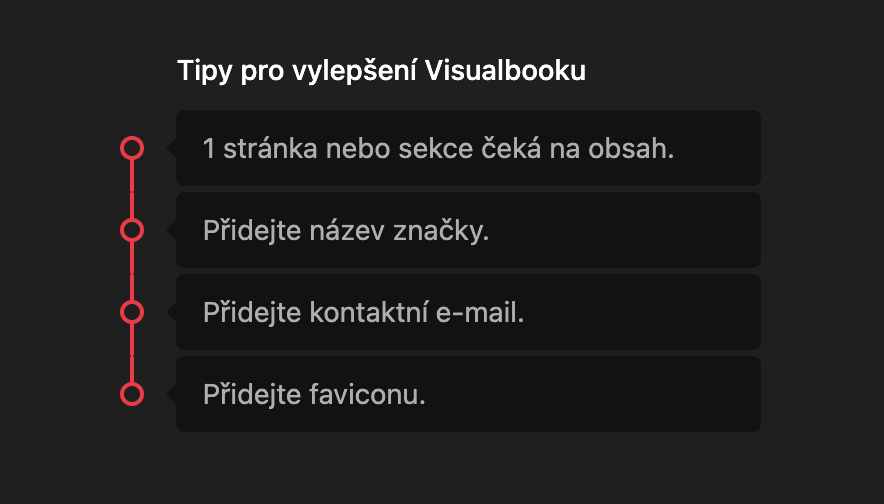
  • A site check in the form of a roadmap – you get a clear view of what is still missing and one click takes you straight to the field in question.
  • New checks: missing logos, contact e-mail, empty sections, draft sections, untranslated texts and slugs, card descriptions, layout.
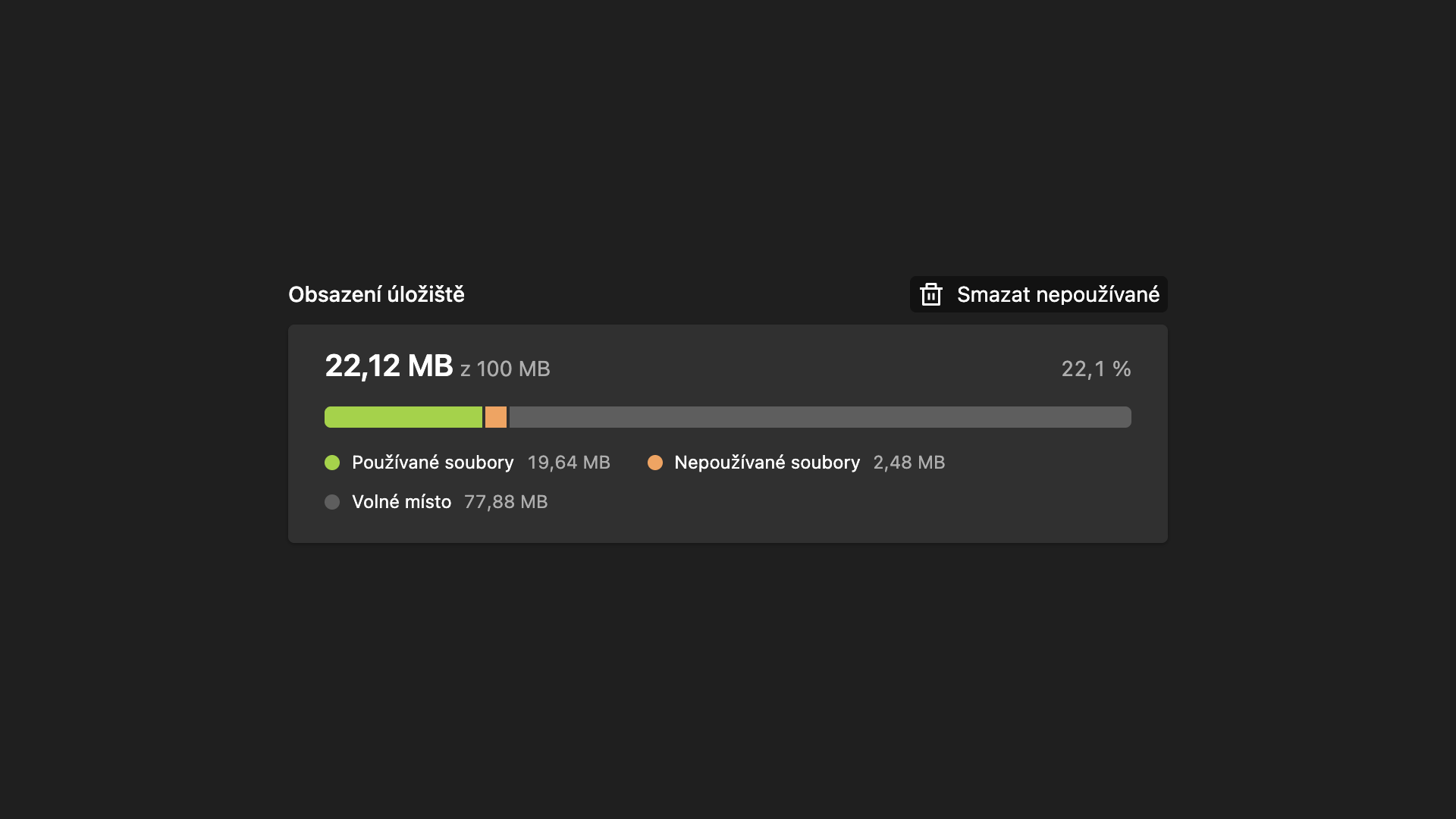
  • Storage usage statistics right in the overview.

Speed

  • Site: smaller CSS/JS, brotli compression, caching of previews and links — faster loading, especially on large pages.
  • Admin: a significantly snappier Logo page, file overview, Alt texts and search. Parts of the panel now load only when you really need them.
  • Search in the panel shows filters right on the first load.

Security and privacy

The whole project went through a security audit — we hardened the protection of content, links, exports and content embedded from other services. All Visualbooks 6.0.0 run on the Kirby core version 5.5.3 or higher.

Export

  • Static export: fixed permalinks, missing card images in the offline version, the font in the typography card.
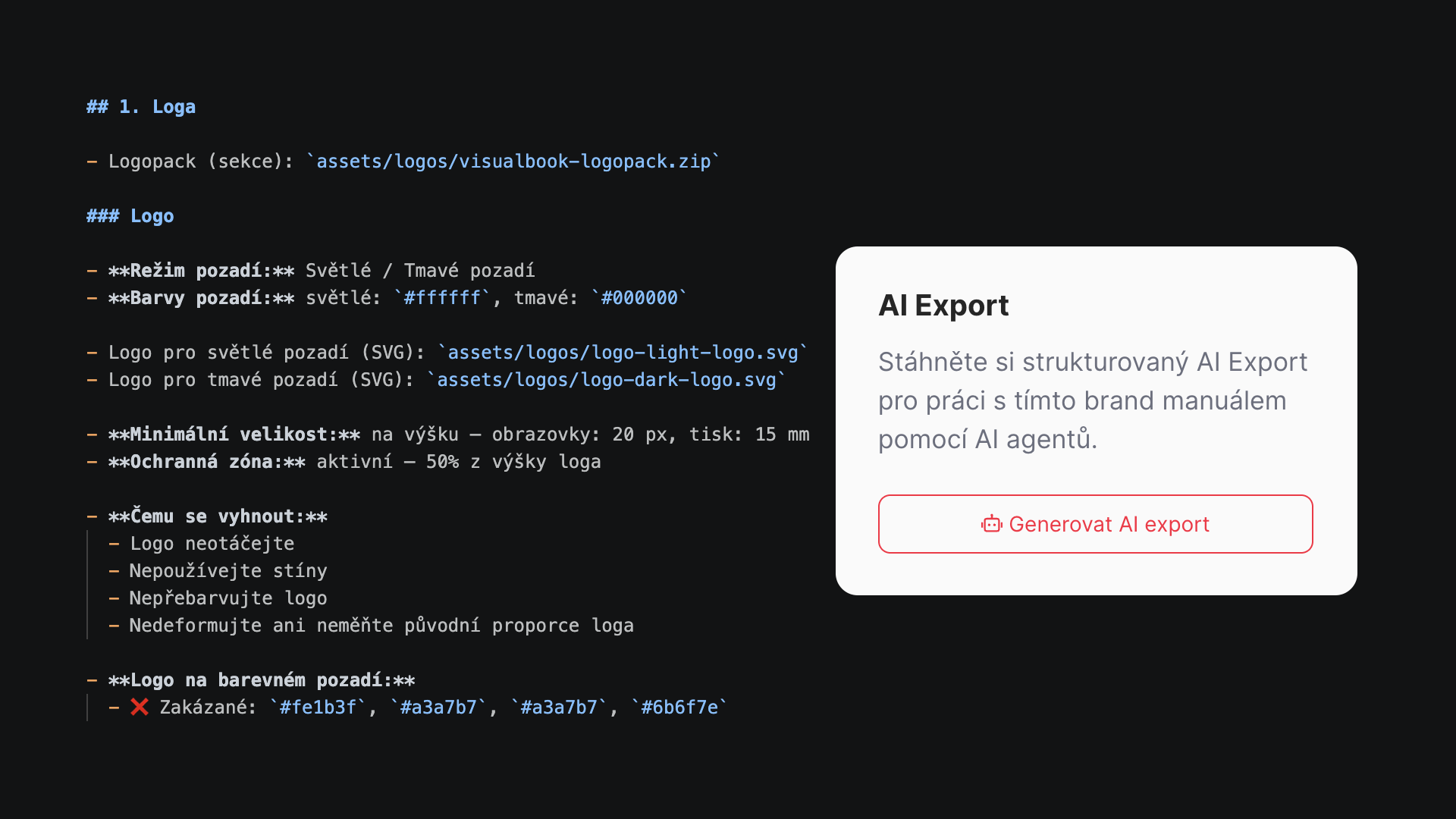
  • AI export (Markdown): six-language labels, no hidden content, cleaner output.

Small things and fixes

  • When a page can't be saved, the panel tells you exactly what is missing — for example "The password is too short (at least 12 characters)" and on which row — instead of a generic "fix the form".
  • When you upload a file or save changes in the admin, the side drawer no longer closes — you stay in the item you were working on and don't have to click your way back into it.
  • Bulk deletion of pages has been improved.
  • Fixed zooming and the lightbox in edit mode, closing hotspot tooltips, alignment of section headings, spacing between logo groups, and text sizes according to the Design settings.
  • The edit history shows details in all panel languages and also reports AI connector logins.
  • The "Getting started" guide matches the new tab layout.

Changes and removed features

  • Colour import has been removed — colours are entered and edited directly in the swatch, or you simply import them through the MCP connector.
  • The text (.txt) export of the colour swatch has been removed, since with MCP it had become an obsolete feature with minimal use.

5.8.4

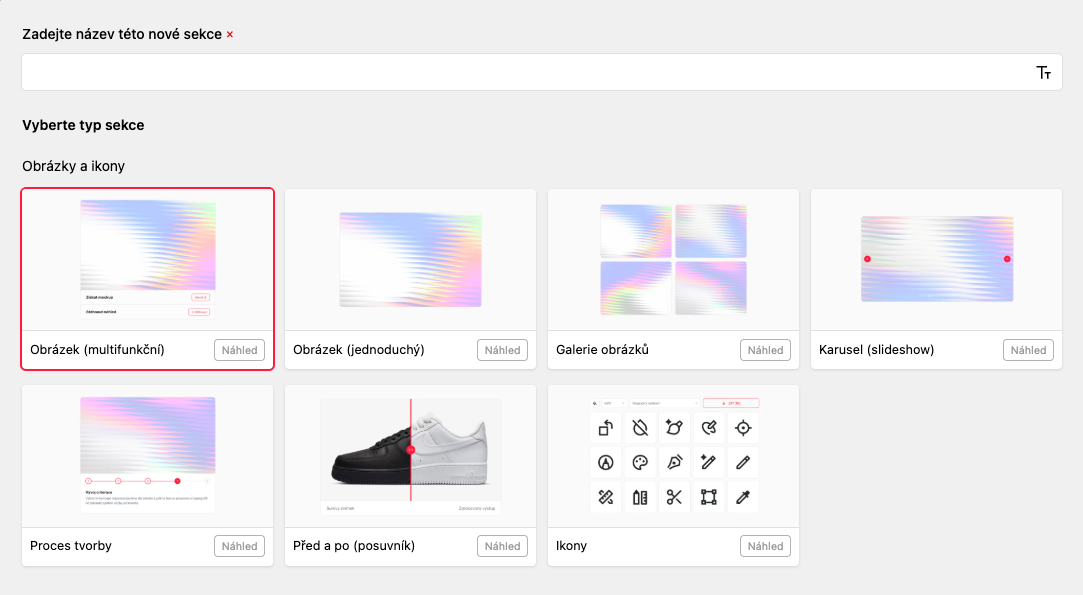
Redesigned section template picker

  • A new dialog for choosing a section
  • Clicking the Preview button shows interactive HTML samples of the possible variants
  • A simple overview of the options that saves time and makes the decision easier

5.8.3

E-mail notifications for new users

  • A newly added user now receives an e-mail notification with sign-in instructions.
  • A change of e-mail address is also sent to the user in question

Minor improvements

  • Updated Getting started guide
  • Fixed background rendering in the OG Image
  • Performance improvements
  • Fixed the text style for minimum logo sizes
  • Fixed spacing in the image gallery

5.8.2

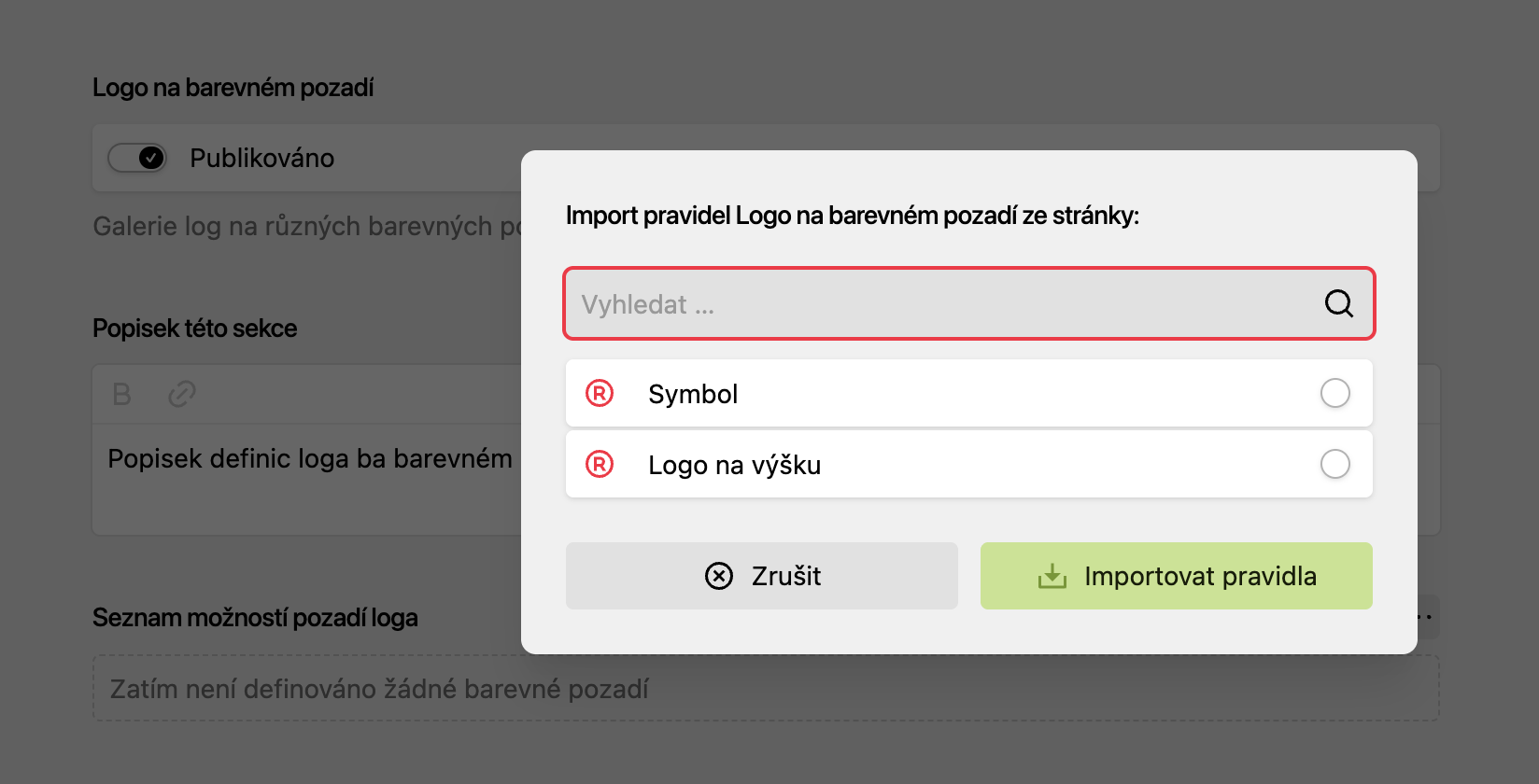
Copy guidelines from one logo to another in a single click

  • Preparing the guidelines for a logo on colour and image backgrounds takes some time. For further logo variants derived from the main logo, however, you no longer have to click through those guidelines again. You simply choose which page to import the guidelines from and you're done.

Move a copy of a section without duplicating it

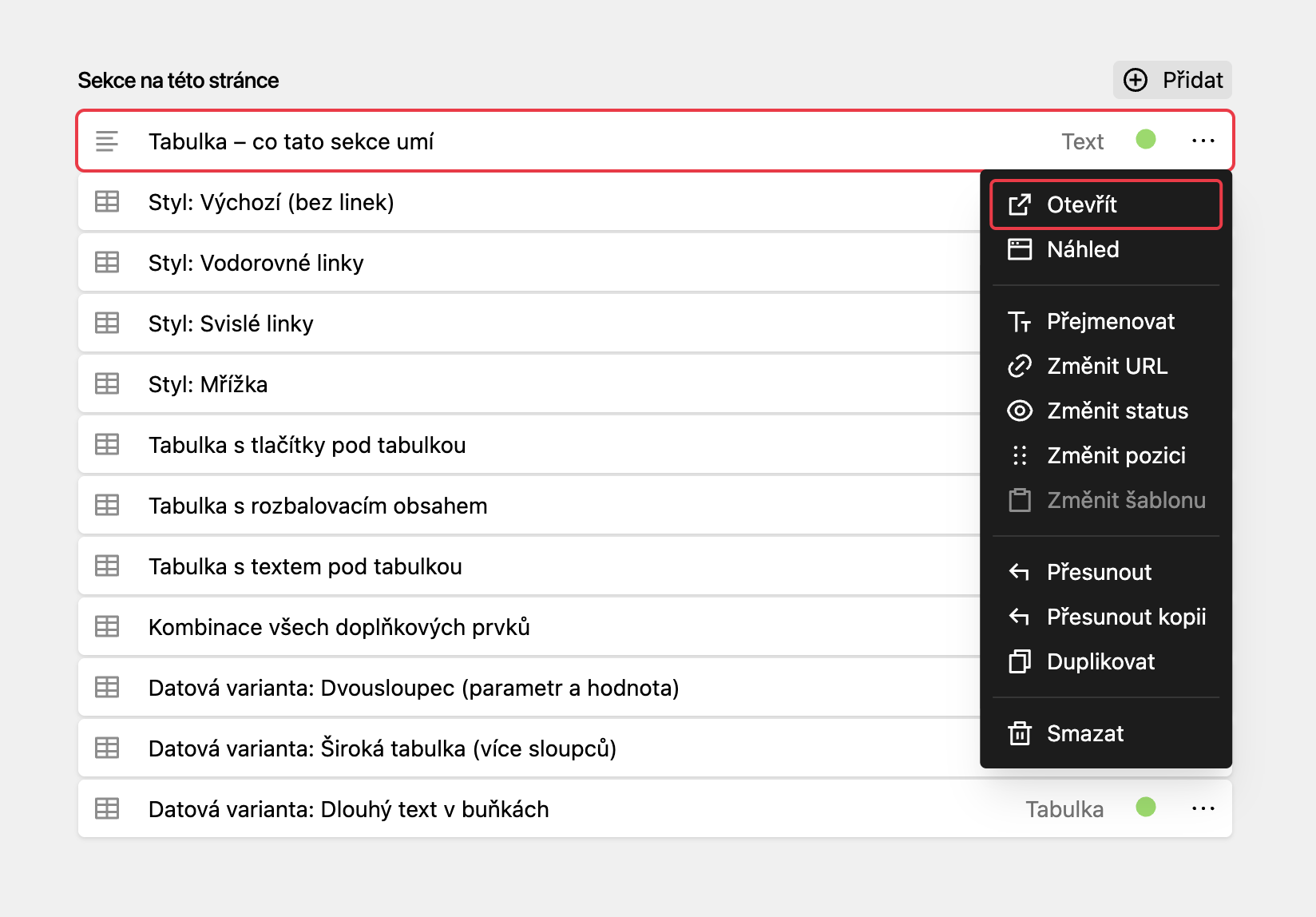
  • If you have created a section with content that can be used entirely — or just partly — on another page, you can now move that section as a copy in one click. No duplicating, moving and rewriting the name afterwards. One click creates the same section wherever you need it.

New table options

  • The Table section comes with a whole range of improvements. You can refine the table style and add buttons, collapsible content or additional text below it.

5.8.1

What's new

  • A page group can now contain another page group

Fixes

  • Minor bug fixes and improvements

5.8

What's new

  • Page group – a reworked page type that replaces the former Overview. You can now create any number of further subpages inside a page group and keep the structure of your Visualbook very clear even with a large number of pages.

Improvements

  • Lottie animations load faster
  • Section descriptions handle #hashtags
  • Image and text cards on content pages can now be displayed in a column or across the full page width

Fixes

  • Image previews stopped being displayed after 30 days because of a faulty cache function. This is now fixed.
  • Fixed the Figma token export in colour swatches
  • Other minor fixes

5.7.4

Improved

  • Safer file handling – The panel recognises more precisely which files are in use, reducing the risk of mistakes during bulk deletion.
  • More accurate overview in the Panel – File counts and used storage refresh better after changes and show consistent values.
  • A more up-to-date site after changes – Search, sitemap, robots.txt and dynamic styles refresh better after a page is moved, renamed or changed.
  • Faster and more stable admin – Repeated cache refreshing has been unified, so everyday edits in the Panel put less load on the system.
  • Faster search – Search goes through content more efficiently, so results load faster.
  • Faster saving in the Panel – When a page is saved, related cache refreshes are merged better, so the admin responds more briskly.
  • More efficient audit log – The change log is leaner and handles a larger volume of events without slowing the Panel down.
  • Better bulk operations – Imports and migrations can defer demanding cache refreshes, so larger batch changes run more smoothly.
  • Faster page loading – Optimised resource hints limit font preloads to a maximum of 6 and remove unnecessary preloads of body fallback fonts.
  • Better LCP score – Main images in carousels and hero sections now carry the fetchpriority="high" attribute, so the browser prioritises downloading the LCP image.
  • More efficient tracking – Analytics loads only on pages and sections where downloads are available, not globally.
  • Improved llms.txt for agents – The file lists a deeper tree of public pages, includes a section about Markdown via Accept: text/markdown, skips helper page types, and the Link HTTP header pointing to llms.txt / robots.txt is sent outside the home page too. The Markdown response is based on the content in main and includes brief guidance with a link to llms.txt.

Added

  • Show password while typing – Password fields on a protected page, the global site password and the modal for a protected link or file now have an icon to toggle between hidden and visible text.
  • Link cards – text or images in one module – In the Link cards section you can switch between text cards and image cards in the right column. Text cards support page selection and custom links as before. Image cards have the same options as the Image cards section: aspect ratio, image, link to a page or URL. Text cards are the default and the choice is shared between languages.

Fixed

  • Correct display of typefaces on the site – On some installations plain system fonts were shown instead of the brand typefaces. Fonts and other elements now load reliably for all visitors, including anonymous browsing.

5.7.3

Added

  • Website identity verification for bots – The site can now prove its identity to automated systems (e.g. Cloudflare). It works much like a digital signature – the recipient can verify that a request really comes from your site.
  • Catalogue of available services – A new machine-readable list of all public resources of the site (content for AI, sitemap and more). AI agents and tools can therefore discover automatically what your site offers.
  • Better discoverability for AI agents – The home page now points directly to the machine-readable resources of the site in its HTTP response, so AI agents find them faster and more reliably.
  • Content in Markdown for AI – When an AI agent requests a page in Markdown (instead of regular HTML), the site returns it in that format. Nothing changes for regular visitors in a browser.
  • Rules for AI crawlers – The robots.txt file now contains a clear declaration: the site's content may be used for search and as a source for AI answers (so an AI agent can cite your brand guidelines correctly), but it may not be used to train AI models.

Fixed

  • YouTube in the Video modules – The "Watch on YouTube" link on an embedded player no longer ends with a browser error (ERR_BLOCKED_BY_RESPONSE). The sandbox attribute, which prevented the YouTube video page from opening properly, has been removed from the iframe.

5.7.2

Improved work with logos

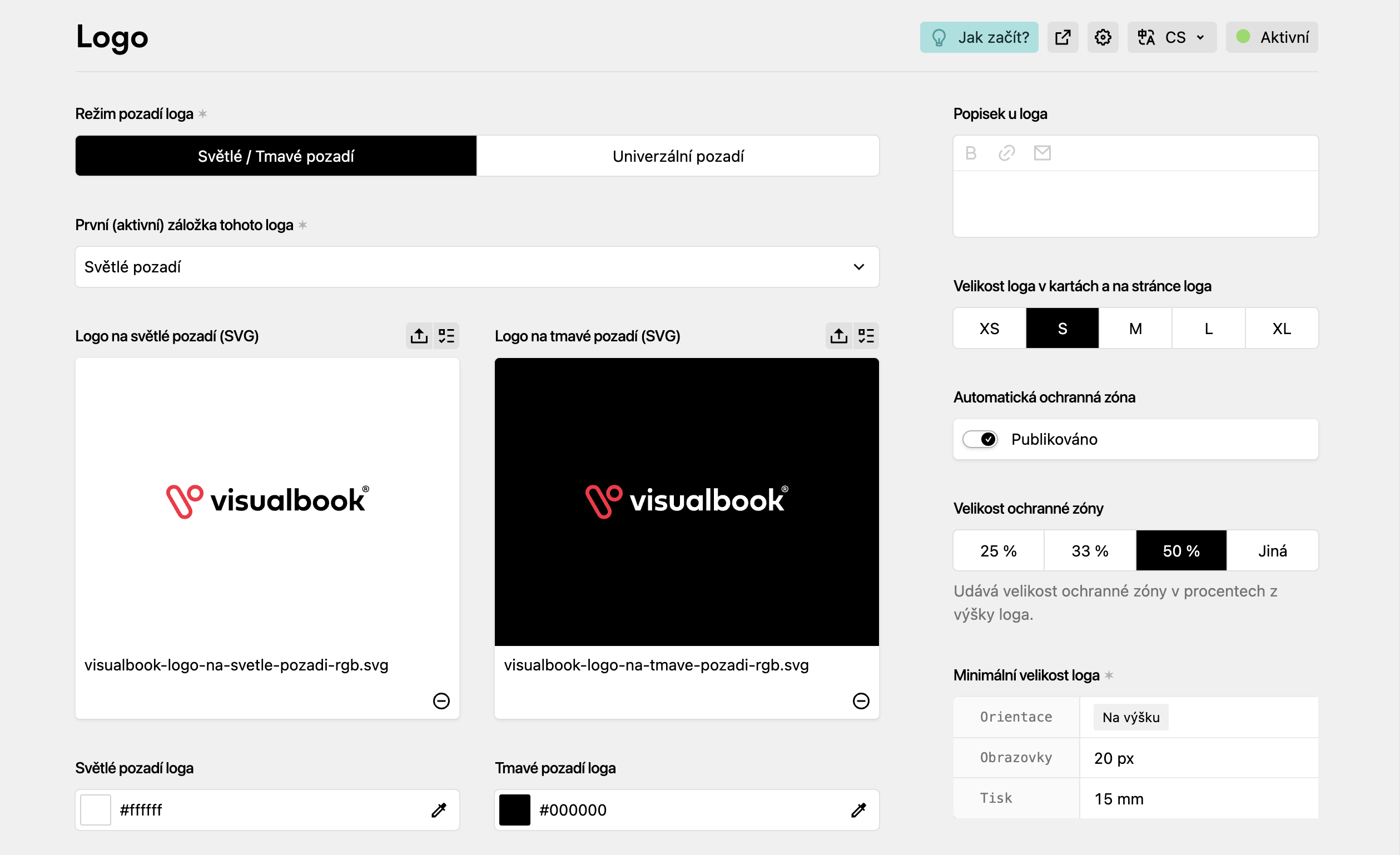
  • Logo sizes on cards are generated dynamically according to their actual aspect ratio
  • Manual fine-tuning is possible with the XS, S, M, L, XL buttons (to the right of the logo)
  • The automatic clear space zone offers a preset selection of the most used values, with the option to set a custom one
  • Editors see logo size changes live in the admin panel

Side navigation (even without a sidebar)

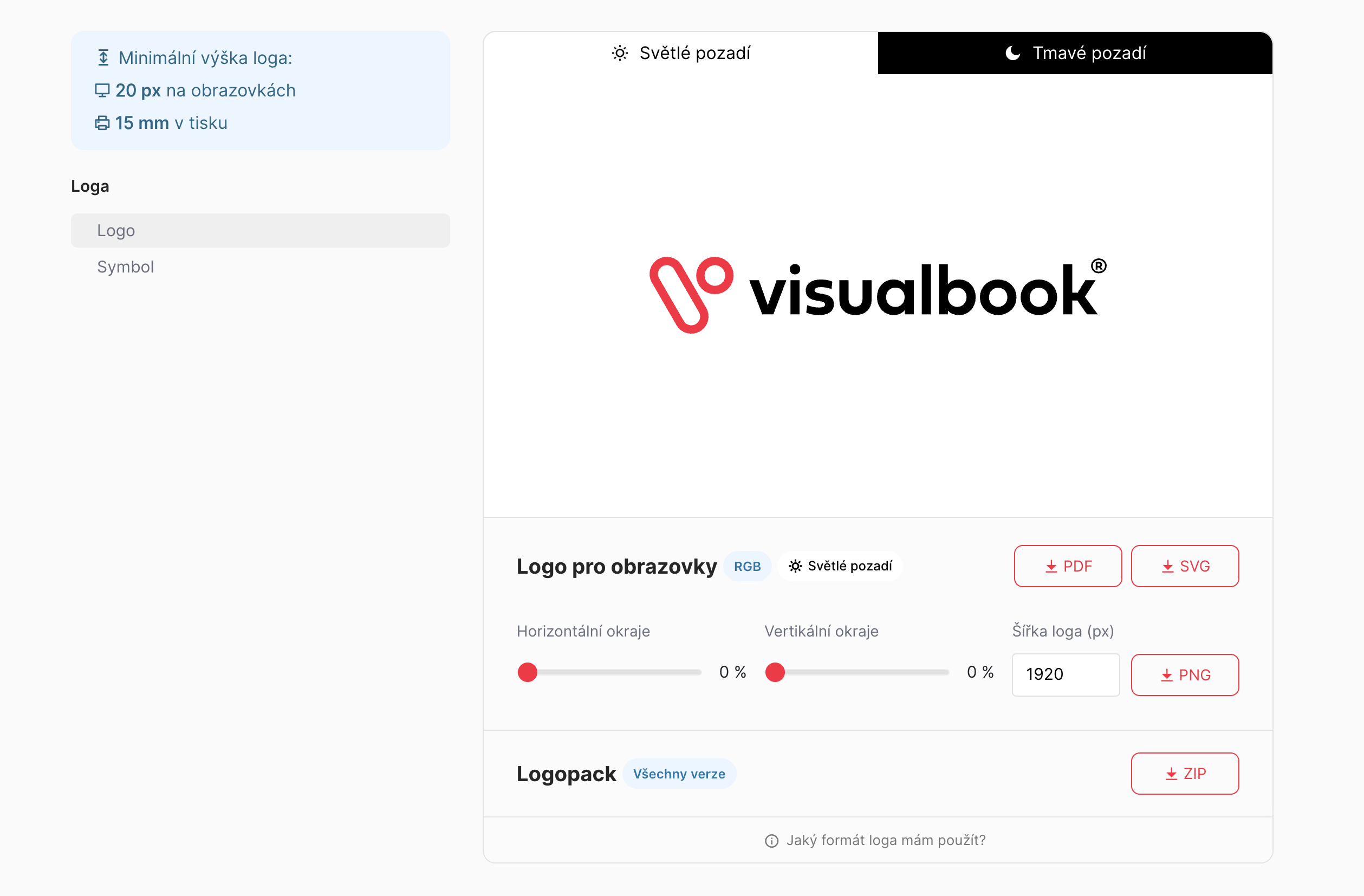
  • To the left of every logo there is now the option to jump to the other logos within the same overview

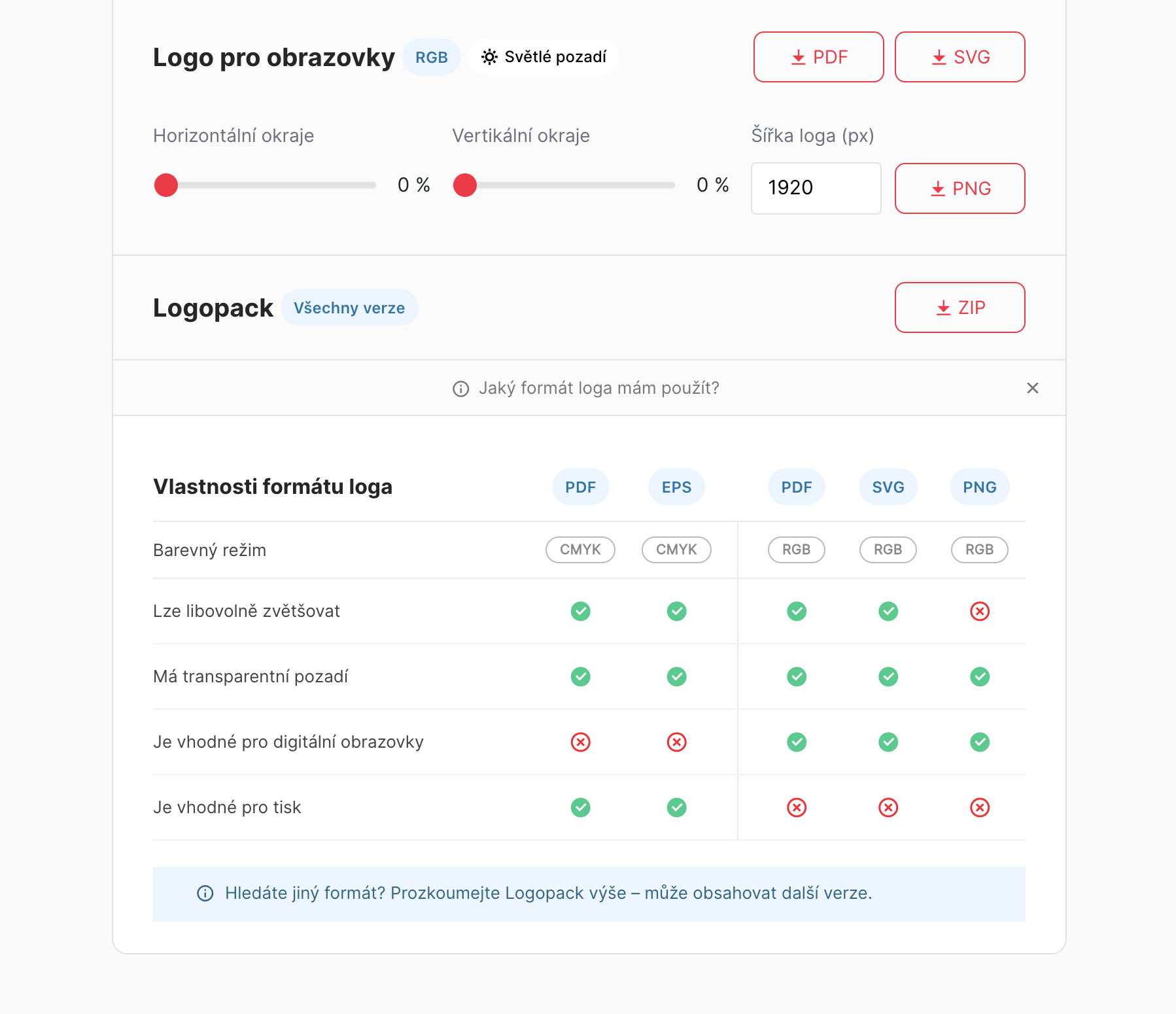
Collapsible helper content below the logo

  • A helper for users who aren't sure which logo format is right for them

5.7.1

Visualbook AI export

Support for Lottie file animations

  • You can add a Lottie animation to a card preview
  • Or in the Video & Animation section
  • Or also in the Video & Animation (multifunctional) section
  • The .lottie files themselves can be uploaded as downloadable files in all sections that support file downloads

5.7

Visualbook AI export

New export options, individual multibrand styles, llms.txt, change reports and more

AI export:

  • Public and complete AI export (ZIP + Markdown for tools/LLMs); in multibrand mode you pick a sub-brand and see an overview of recent exports per brand.
  • In onebrand mode the layout and behaviour match the static exports (a separate "Generate", below it a line with time/expiry and compact Download / Copy / Delete actions, including the same feedback when copying).
  • Option to enable the generate button directly on the manual's homepage
  • A public text file at /llms.txt (on multilingual sites also /cs/llms.txt etc.) – an overview of the public sections of the manual, links to the sitemap and search, and brief rules for tools and LLMs. Protected pages are not listed; the full content stays only in the panel export for authorised users.

Offline export

  • Added a separate offline static export (ZIP) alongside the online export – its own block in the panel with the same workflow (generate, download, copy link, delete, expiry).
  • Useful for a local backup, internal presentations and meetings, handing over to a colleague or an archive snapshot outside your hosting.

Change history

  • A new edit history report in the admin – an overview of what changed in the manual, by whom and when (tied to the daily e-mail report).

Panel performance (files and pages)

  • Faster Files and Pages tabs: cached categories, a persistent cache of the page overview and lazy loading of tabs (a lighter first load, with data fetched when you switch tabs).

Individual multibrand styles

  • every brand in multibrand mode can now have completely unique styles – colours, typefaces, corner radii, backgrounds, etc.

5.6.5

New analytics, redirect settings and better static exports

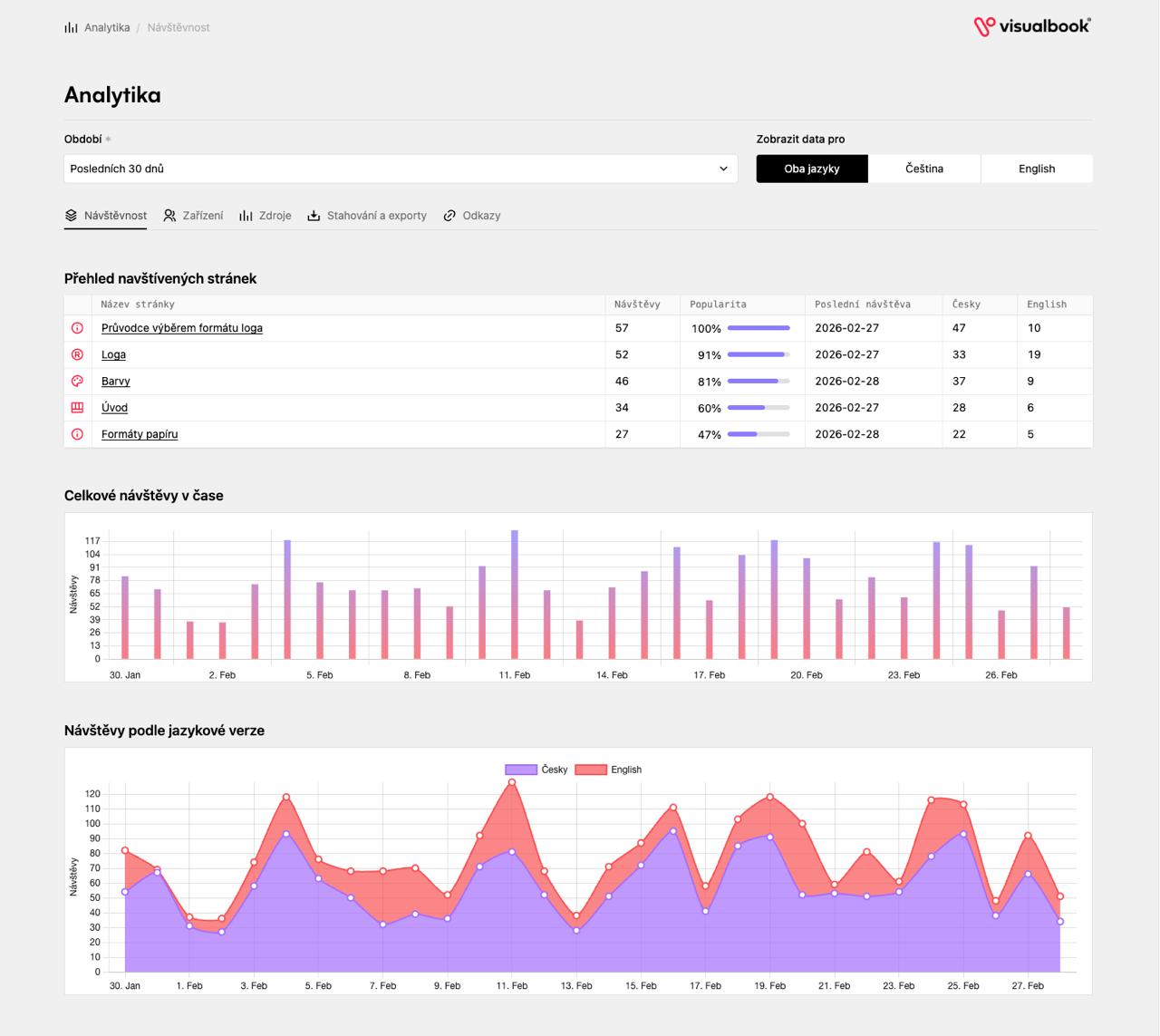
Measuring visits to your brand manual:

  • Overview of visited pages
  • Total visits over time
  • Visits by language version
  • Device types over time
  • Browsers used
  • Operating systems used
  • AI agents vs bots vs real users
  • Traffic sources over time
  • Overview of downloads and exports
  • Overview of link clicks

Redirect settings

  • Creating your own redirect paths
  • Tracking redirected links
  • Tracking failed attempts

Improved static exports

  • Export for offline use – works right away when you click index.html
  • Export for online use – works right away after uploading it to your server

Other improvements

  • the favicon automatically generates favicon.ico
  • updated admin panel Wizard
  • other minor improvements and bug fixes

5.6.4

Sharing or managing files and links individually per language

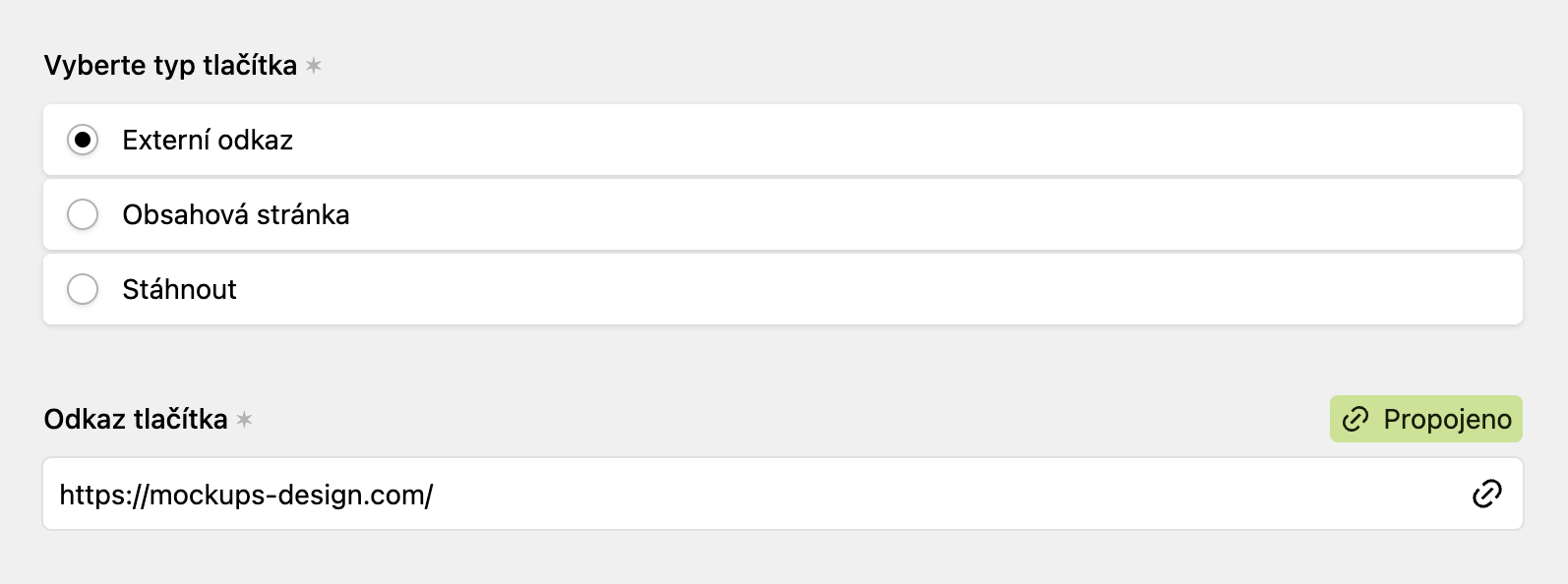
  • A selected field in the admin can be shared between language versions (CS ↔ EN) — files, URLs and general links.
  • Right in the field header there is a "Linked / Not linked" button to toggle synchronisation in one click.
  • When you turn synchronisation on, the field content is copied to the other language immediately.
  • Synchronisation also works inside repeating sections (repeaters).
  • Hovering over the button shows a tooltip describing the current state.

5.6.3

Improved organisation of card layouts in Visualbook:

  • A clear listing of Large and Small cards including real previews
  • Cards also include animations and logo slideshows
  • Drag & drop reordering of cards, with the result visible on the site immediately

5.6.2

Improved performance and file organisation in Visualbook:

  • Faster file loading
  • Easy selection of unused files
  • Bulk deletion
  • Other changes and improvements

5.6.1

Improved access protection in Visualbook:

Visualbook lets you protect content on four levels. On each of them you can use:

  • a password
  • verification by company e-mail
  • or both (the user chooses when signing in).

1. The entire Visualbook

In the project settings you can lock the whole site with a single password and/or allow access only to people with a company e-mail (e.g. everyone with a @yourcompany.com address). A visitor without permission cannot reach the content.

2. Selected pages

Every page can be locked separately – independently of the site-wide lock. This is handy when you want to keep most of the manual open but make some sections (e.g. internal processes) available only to selected people. You can also add your own help text that appears on the login screen.

3. Downloadable files

You can set protection separately for every file. The user clicks the download button, a modal window appears and only after entering the password or the verification code from their e-mail do they get the file. The real file address is encrypted – it cannot be found in the page source.

4. Links and buttons

Individual external links and buttons in any module (typefaces, galleries, accordion, cards, etc.) can be protected too. It works the same way as for files – a verification modal appears after clicking.

Important limitations

  • Public e-mail domains are blocked – domains such as gmail.com, seznam.cz or outlook.com cannot be added to the allowed domains. E-mail protection is intended exclusively for company addresses.
  • Static export – in the generated ZIP file only a password works. E-mail verification requires a server, so it is automatically disabled in a static export and protected files are converted to direct links.

5.6

What's new and improved

  • Optional side navigation
  • A logo can now also be defined for a single universal background
  • The caption of a logo on a colour or image background can contain a link
  • Better quality of uploaded images
  • The crossing-out line now has 3 selectable weights
  • The logo card generates a PDF from the uploaded SVG automatically
  • Deleting a page with subpages no longer requires typing its full name

Fixes

  • Fixed link generation in texts (non-breaking space)
  • Fixed generation of the logo background colour in the panel

5.5

What's new and improved

  • Improved search
  • More reliable delivery of one-time codes
  • Password setup for users who didn't have a password yet
  • New Kirby 5.3 core with better performance
  • Improved project indexing settings
  • An SVG icon from the Icons section can be copied to the clipboard in one click
  • You can set the stroke weight of an image or guideline crossing-out
  • Improved OG Image rendering
  • Updated Universal embed section (Miro, Loom and other services)
  • The primary and secondary language can be changed at any time on request
  • Security improvements
  • Performance improvements
  • Change reports by e-mail
  • Replacing a file with a new one of the same name happens automatically
  • Dynamic listing of the stylistic sets of uploaded typefaces

5.4.2

What's new

  • Icons section
  • synchronisation of the typeface name and the url slug (cs + en)

+ fixed lightbox display

5.4.1

What's new

  • EPS files can now be added for direct download on the Logo page
  • the logo background colour set in the admin panel is now written directly into the image
  • descriptions in the left column now have underlined links for better clarity
  • cards from the Overview can now be added to content pages as well
  • the Gallery section can now add buttons: a link to an external URL, a link to an internal page or to a downloadable file
  • the Large gallery page has these options too

+ minor bug fixes

5.4

5.4

What's new

Live editor (quick edits)!

  • a logged-in user can now edit texts directly in the manual

Wizard

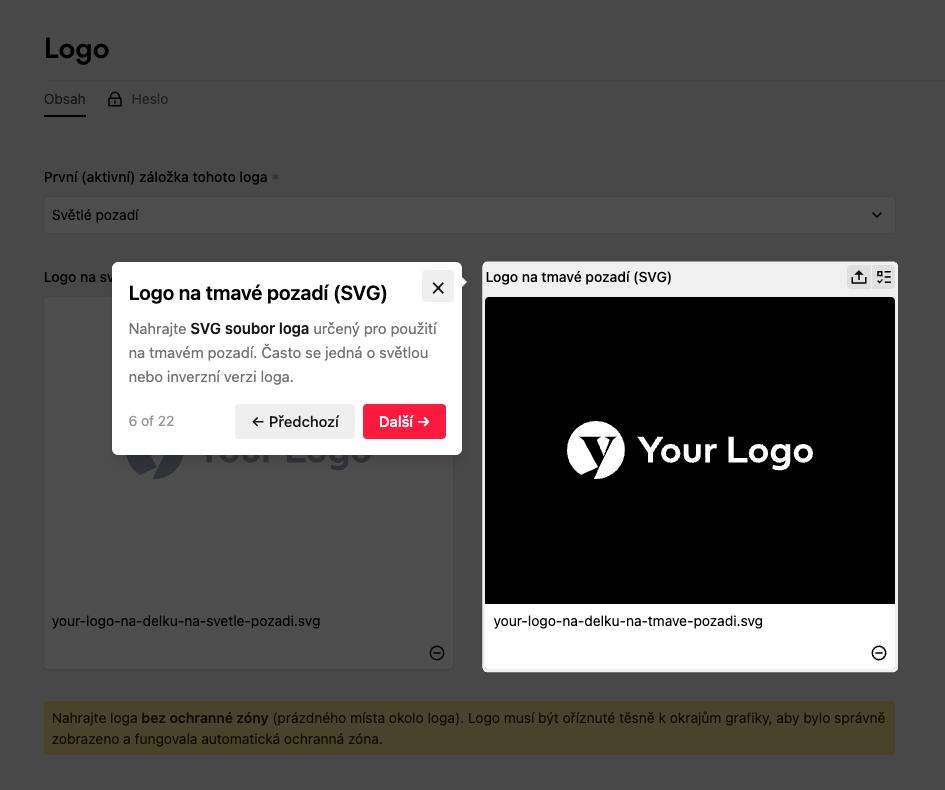
  • every main page now has a Wizard where users learn all the essential features and options through an interactive walkthrough:

  • Wizards for individual sections are in the works.

    A card with an external link can now be password protected, so in total you can password protect:

    • The entire brand manual

    • Any selected page

    • Any selected file

    • An external link in the form of a card on the main page

    Large gallery now has the option to add downloadable files

    The Image gallery section now has the option to add downloadable files

    Visualbook now accepts .af files (Affinity)

    The Colours card offers these swatch display templates:

    • Swatches

    • Squares

    • Circles

    • Circles (animated)

    • Vertical stripes

    • Horizontal stripes

    Bug fixes:

    • fixed synchronisation of a Multibrand Editor user's allowed sub-brands in both EN and CS

    • minor bug fixes